
How FunParty Works

See the themes in action, follow the guest-to-TV flow, and explore the controls that shape the live photo wall.

Live theme demo

Pick a look and watch the party change

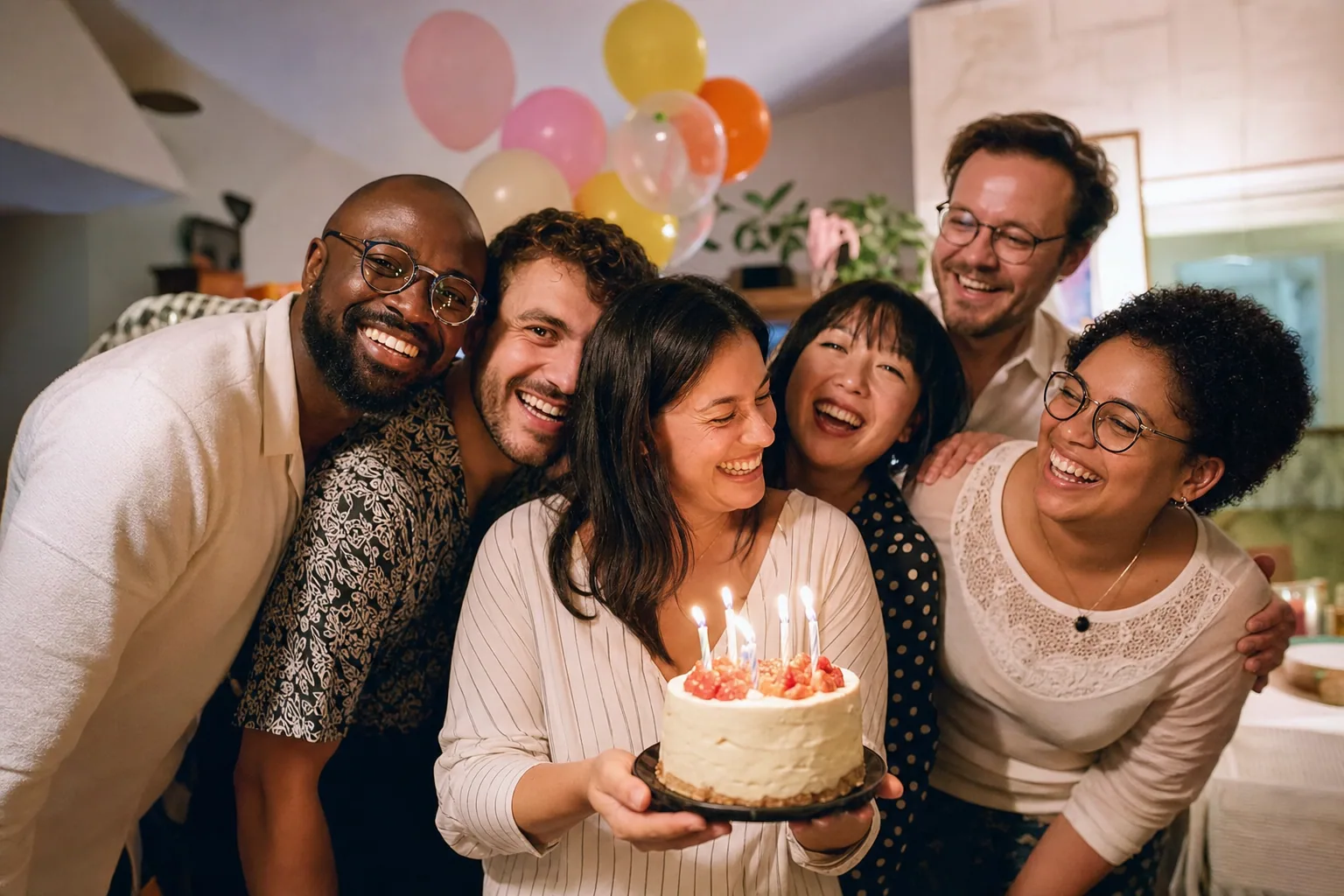
Each theme keeps the event title, guest messages, and upload QR on screen while party photos rotate through the show.

Shared by Nina

Cake, candles, and all our favorite people!

Nina

Maya’s Birthday

Jordan

Aug 8, 2026

Scan QR to upload

Scan to add photos

Messages

Nina

Cake, candles, and all our favorite people!

Birthday Cake

Bright birthday color and confetti

From setup to keepsake

One simple party flow

Create and rehearse

Create a test event, choose a theme and approval mode, upload a sample, then open the wall on the TV or projector you plan to use.

Share one QR code

Guests scan, add a display name, choose a photo, adjust the framing, add an optional message, and send from their phone browser.

Watch, direct, and keep

Approved photos join the designed wall as they arrive. The host can hide or remove anything, then download the event album afterward.

Build the wall for the room

Themes and features, all in one place

Designed themes, live host controls, and a simple guest flow turn phone photos into a shared moment in the room.

Designed themes for the occasion

Choose a look that fits the gathering, then make the color, background, and screen details your own.

  • Photo-first choices include Classic, Spotlight, Modern Art, Art Museum, Polaroid Memories, and Your Background.
  • Celebration themes cover birthdays, weddings and showers, anniversaries, graduations, reunions, proms, game days, backyard parties, disco nights, and seasonal events.
  • Memorial and garden remembrance themes give quieter gatherings a respectful presentation.
  • Themes coordinate photography, framing, typography, transitions, motion, QR treatment, and guest-message moments, not just a background color.
  • Preview the real TV renderer before choosing a theme. A wall that is already open picks up saved display changes without restarting the event.

Made for the big screen

Every theme protects the original proportions of landscape and portrait photos.

  • The freeform crop tool starts with a centered 16:9 frame, so most guests can upload immediately and anyone can adjust exactly what appears.
  • Cropping is non-destructive. It controls the TV framing without altering the optimized photo stored for the album.
  • Framed themes adapt the photo box to the saved crop or natural image shape instead of stretching or squashing the photo.

Direct the screen

Adjust the show in Theme Studio, not in a maze of disconnected settings.

  • Choose background artwork, color style, motion level, live messages, and sidebar opacity while watching the real preview.
  • Choose a quick party pace or a calmer presentation pace for the photos.
  • Turn guest uploads and the TV QR off whenever you want a host-curated, photo-led slideshow.

Host control, easy guest flow

Guests get a short phone-friendly path; hosts decide what becomes public to the event.

  • Guests scan the QR code, add a display name, choose a photo, adjust the crop, add an optional message, and send. No app or guest account.
  • Use auto-approval for a trusted crowd or pre-approval when every upload should wait for review.
  • Approve, hide, restore, or permanently delete photos from the Host Hub, then download the event album as a ZIP.

Practice before guests arrive

A short rehearsal makes the wall feel like part of the party instead of another thing to troubleshoot.

  • Open the guest link on the phone you plan to use, upload a sample, and confirm the selected approval behavior.
  • Put the wall on the actual TV or projector, enter full screen, and check that the QR code is easy to scan from the room.
  • Keep the guest link in the group chat and know how you will reconnect or refresh the display if the venue connection drops.

Choose the display path for the room

Chromecast / Google TV is the easiest route, with TV-browser, AirPlay, and HDMI options where supported.

  • Open the slideshow in Chrome, cast the tab to Chromecast or Google TV, and put the browser full screen.
  • A TV browser can open FunPartyApp and use the six-character event code. There is no long private URL to type.
  • AirPlay or an HDMI-connected laptop may fit the venue better. Live guest uploads still need a workable internet connection.

Make a plan, then test the room.

Choose your theme, approval style, QR placement, and display path before guests arrive. Chromecast / Google TV is the easiest display setup.